# Mobile Hacking Lab Device Setup
There are several iOS hacking labs for you to practice which are also related to the attack surface section of this course. You can find them [here](https://www.mobilehackinglab.com/free-mobile-hacking-labs).
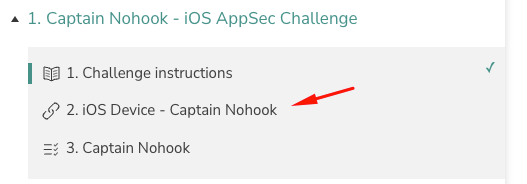
* To connect to the virtual device in any iOS lab, first open the lab page starting with iOS device'
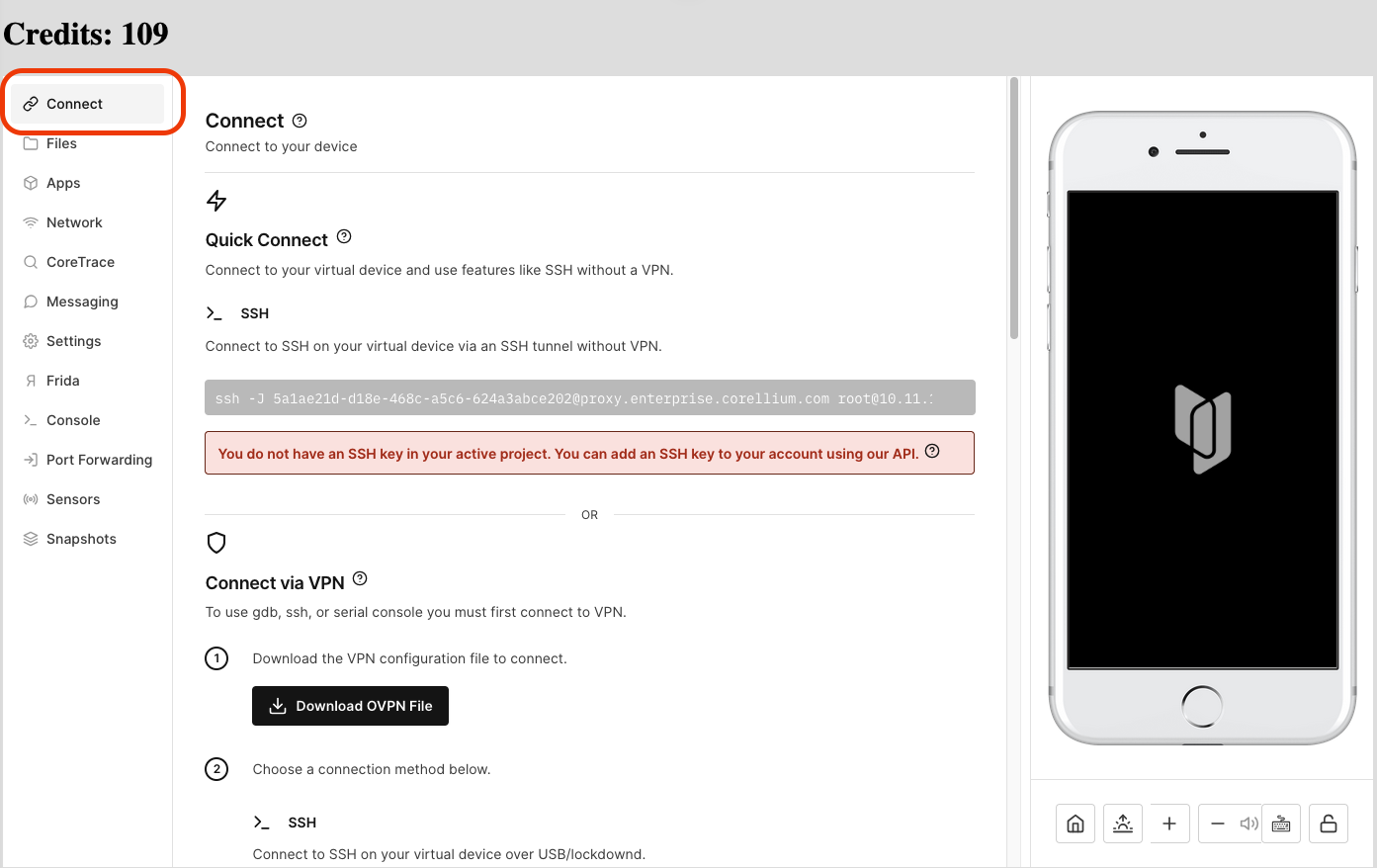
* Next, click on Connect on the left to open the Connect page
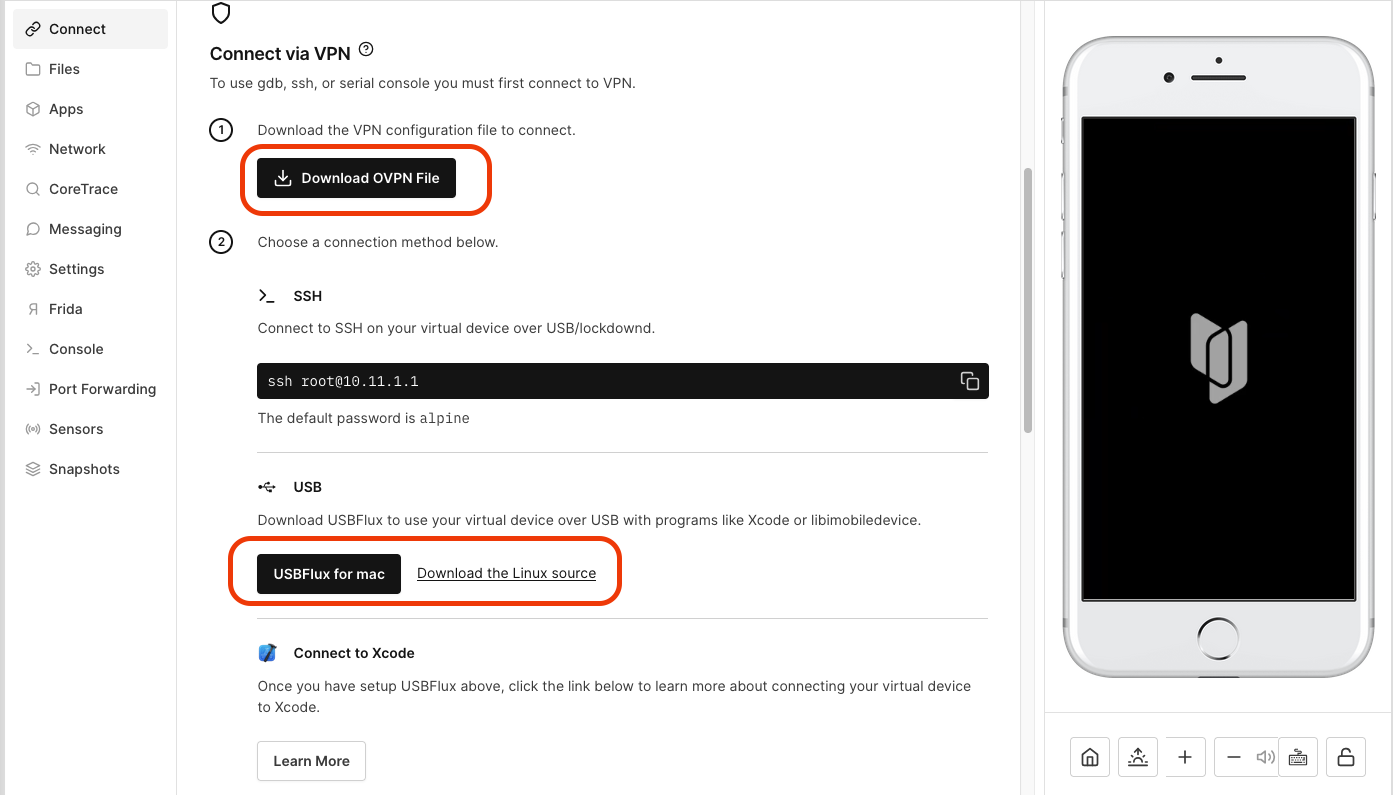
* Download the OVPN File provided and scroll down to see download options for USBFlux and download the appropriate version of USBFlux.
* Next install **USBFLux**\
\- If you are using MacOS, the installation is pretty straightforward with drag n drop.\
\- For Linux, you can download the binary for your architecture from [https://github.com/corellium/usbfluxd/releases/tag/v1.0](https://github.com/corellium/usbfluxd/releases/tag/v1.0%C2%A0) and add it to your path as described here [https://github.com/corellium/usbfluxd?tab=readme-ov-file#installation](https://eldeim.gitbook.io/brain_fuck/notes/certifications/eastereggs/mobile-hacking-lab/cipt-ios-penetration-tester/ios-penetration-tester/https:/%20https/github.com/corellium/usbfluxd?tab=readme-ov-file#installation)
* The next step is to connect to the VPN. For this you can utilize OpenVPN or Tunnelblick in MacOS and load the OVPN file.
* On Linux you can start openVPN via:
```
sudo openvpn device.ovpn
```
* If the VPN is working you can start USBFluxd on the foreground on Linux via:
```
sudo systemctl start usbmuxd
```
```
sudo avahi-daemon
```
```
sudo usbfluxd -f -n
```
* or using the GUI application on Mac OS
### **Bonus: On MacOS the device is also visible if you open Xcode**
Once connected, you will see the device in the Manage Run Destinations window of Xcode. The pin is 000000, wait for a while and it should start uploading build cache to the device. If it does not do anything, restart the XCode.\
\
And if you already have frida installed () you can run:
```
frida-ps -U
```
```
frida-ps -Ua
```
Which will give you a list of (active) applications on your iPhone and confirms the USB connection works.
---
# Agent Instructions: Querying This Documentation
If you need additional information that is not directly available in this page, you can query the documentation dynamically by asking a question.
Perform an HTTP GET request on the current page URL with the `ask` query parameter:
```
GET https://eldeim.gitbook.io/brain_fuck/notes/certifications/eastereggs/mobile-hacking-lab/cipt-ios-penetration-tester/ios-penetration-tester/mobile-hacking-lab-device-setup.md?ask=
```
The question should be specific, self-contained, and written in natural language.
The response will contain a direct answer to the question and relevant excerpts and sources from the documentation.
Use this mechanism when the answer is not explicitly present in the current page, you need clarification or additional context, or you want to retrieve related documentation sections.